Play with your hands
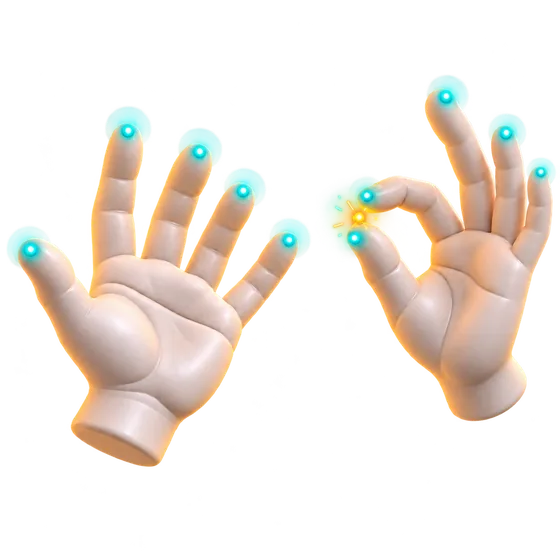
SpotyQuest XR uses tracked hands. Controllers are not required. The device follows the joints of each finger, and the game turns those joints into gestures such as a pinch, a closed fist, a pointing finger, a trigger squeeze or a snap.
Quick reference
| To... | Do this |
|---|---|
| Select a menu button | Hold for 1 second: keep a fingertip on the button, or pinch and keep holding while the pointer rests on it. |
| Bring the game back in front of you | Snap your left fingers. ALIGN VIEW appears. |
| Open or close Options | Snap your left fingers a second time. |
| Shoot an arrow | Close your fist on the bow, pinch the string, draw back about 22 cm, let go. |
| Aim and fire the cannon | Close your fist on the pistol grip and swivel it. Squeeze your index or middle finger to fire. Set power with the lever in your left hand. |
| Putt in Marble Links | Strike the ball with a fingertip. |
| Fire the foam-dart blaster | Hold it with your finger on the trigger and give a quick squeeze. |
| Pick up a monster | Grab it with your hand, then throw it. It runs back. |
| Fly the drone | Options → VIEW → FLY DRONE, then use the two sticks. |
| Move your view | Options → VIEW → ADJUST VIEW. |
| Put the scene straight ahead | Options → VIEW → RECENTRE. |
Selecting: hold, don't tap
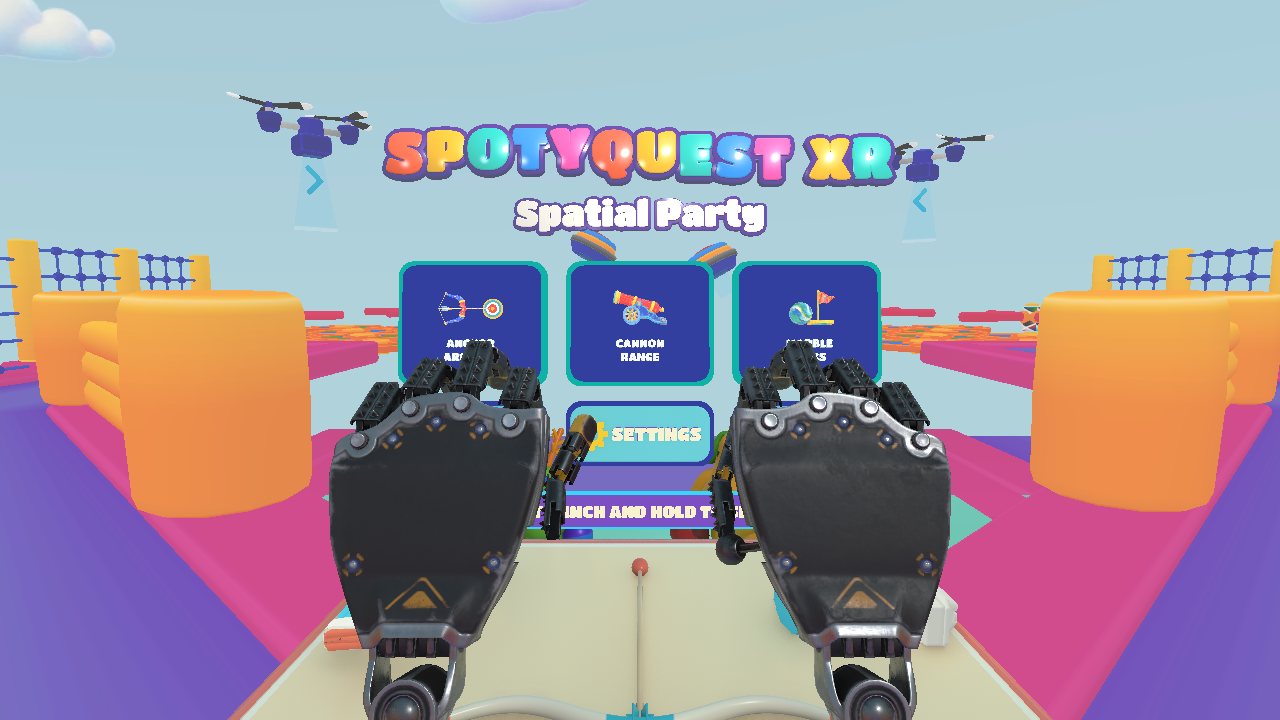
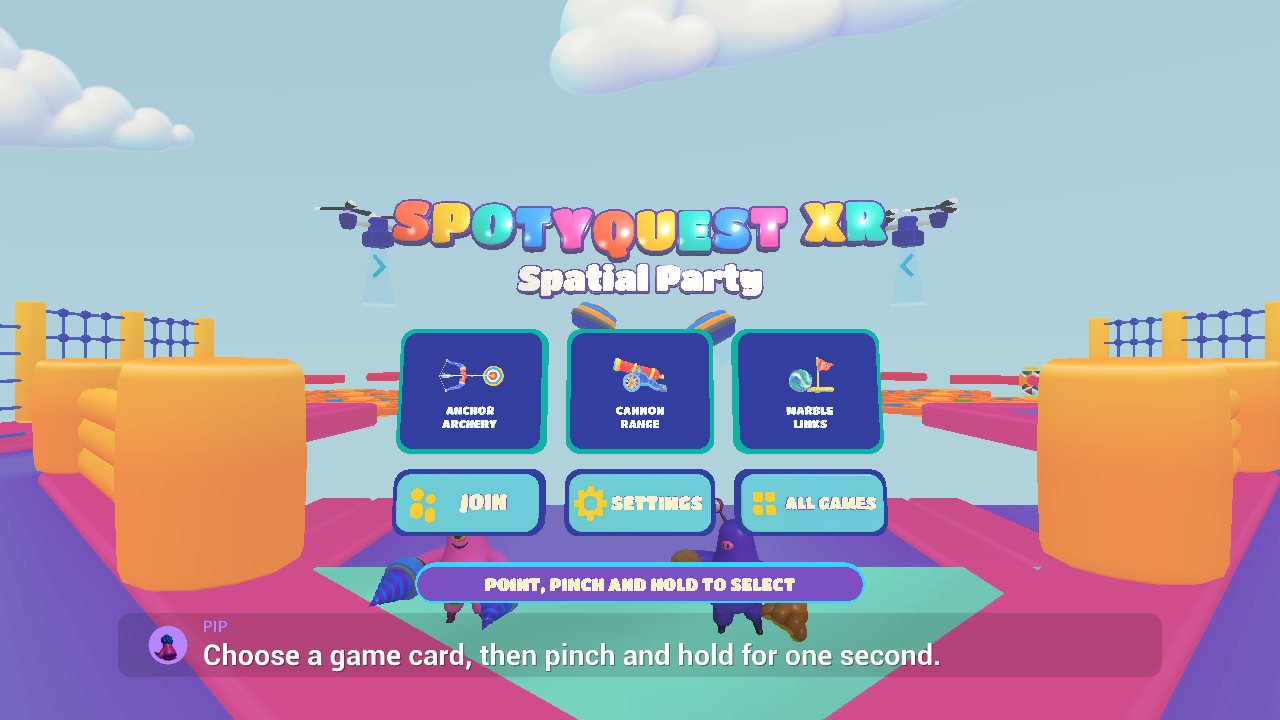
Every menu button commits on a 1.0 second hold. You can do it two ways:
- Up close: rest a fingertip on the button and keep it there.
- From a distance: a pointer comes from your hand. Aim it at the button, pinch, and keep the pinch held while the pointer stays on it.
A translucent bar fills from red to yellow to green. The button presses in when the bar turns green. Move away or let go early and nothing happens.
Why a hold? Hands are always moving, and fingers touch all the time. If a quick pinch selected things, a stray pinch could start a game or leave a match by accident. A one-second hold is short enough to feel quick and long enough to be deliberate.
Buttons and dials that you cannot change right now, such as lobby settings that only the host controls, are shown in light grey.
Snaps: your left-hand shortcut
Snap the fingers of your left hand:
- First snap: ALIGN VIEW appears with a one-second bar, and the game swings back in front of you. This helps if you have turned away from it.
- Second snap: OPTIONS MENU appears and Options opens. Snap again to close it. While you are flying the drone, this snap lands it.
The right-hand snap was removed in alpha.3, because ordinary pinches could set it off. Turn on SNAP HINTS (Options → PLAY) to see reminder cards to your left and right.
Anchor Archery
- Pick up the bow by closing your fist around it.
- Pinch the string with your other hand.
- Draw back. You reach full power at about 22 cm. A strength bar beside the bow shows how far you have drawn.
- Let go of the pinch to release the arrow.
You have 12 arrows a round. If you drop the bow out of reach, it returns to its table.
Cannon Range
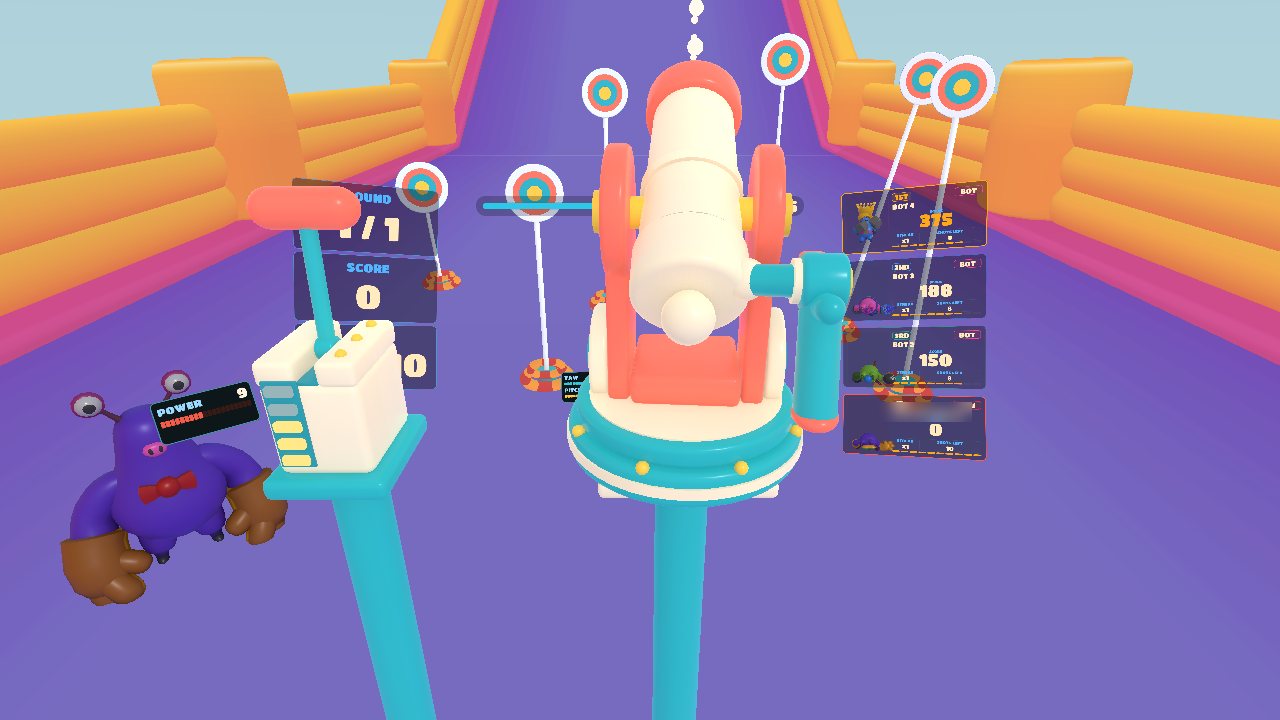
In alpha.3 the toy cannon in front of you is the cannon. Your shot leaves its muzzle.
- Aim: close your fist around the raked pistol grip. It sits on a swivel, so moving your hand turns the cannon left and right and tilts it up and down, like a mounted toy cannon.
- Fire: squeeze the index or middle finger of the hand holding the grip.
- Power: your left hand works a separate power lever. A lamp gauge shows the setting.
Left-right, up-down and power each have 20 stops. At every stop you hear a soft magnetic hum and the readout changes. A preview arc from the muzzle shows where your shot will go.
Why stops? A tracked hand never lands in exactly the same place twice. With 20 stops per axis, you can return to the setting that hit last time, and the game knows exactly which shot you chose.
You have 10 shells a round. Prefer the older dashboard console with a lever, a FIRE button and an aiming stick? Choose it in Options → PLAY → CONTROL STYLE.
Marble Links
- Strike the ball with a fingertip. The faster your fingertip moves, the harder the shot.
- A stroke meter shows your fingertip speed and the power of the stroke.
- Every hole tees off in front of you.
A tiny monster walks the course. You can grab it or knock it off the board, and it comes back.
Drone flight
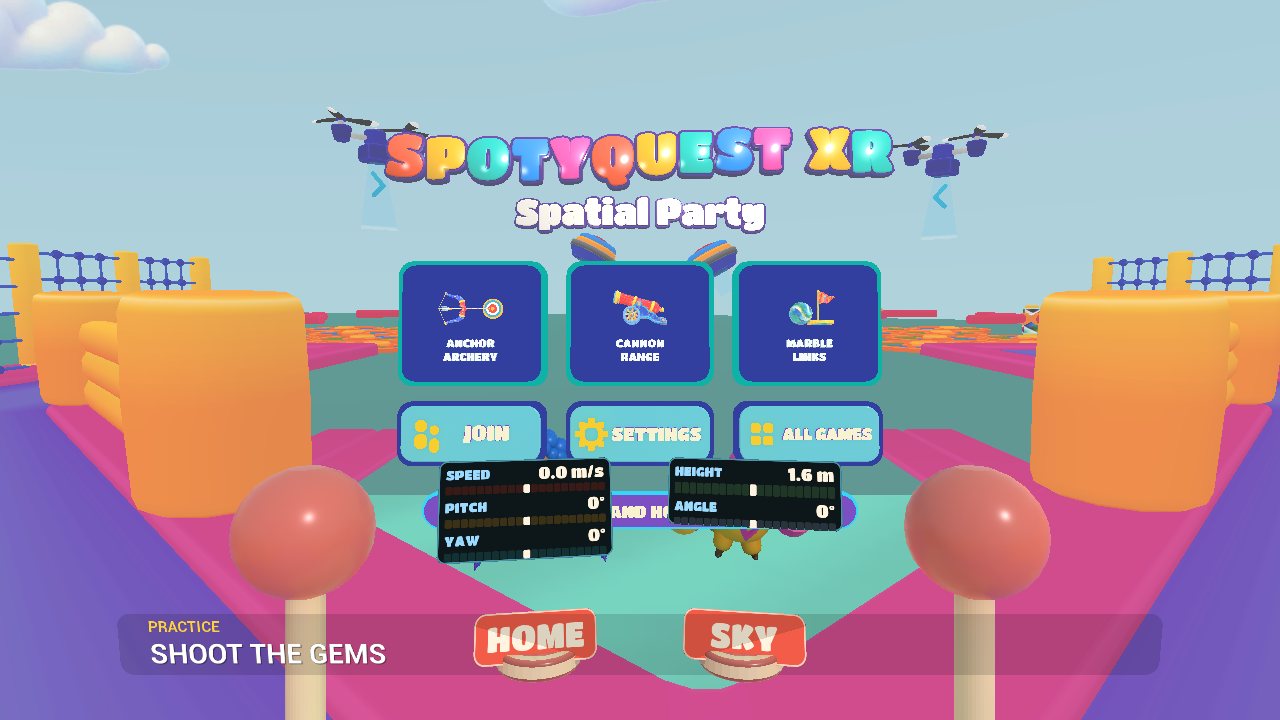
From the home hub, choose Options → VIEW → FLY DRONE. You fly in first person from a steady cockpit.
| Control | What it does |
|---|---|
| Left stick | Speed and turning |
| Right stick | Height, and sliding sideways with a bank |
| SKY | Climbs to 12 m for a bird's-eye view |
| HOME | Flies you back home |
| Second left snap | Lands the drone |
The sticks spring back to the centre when you let go. Normal flight stays between 0.3 and 2.5 m above the floor. If you fly out of the zone, a star transition brings you back inside. Landing puts you back exactly where you started. Drone flight is only available from the home hub.
Foam-dart blaster and toy bow
On the home hub's toy bench you will find a bow with unlimited arrows and a foam-dart blaster.
- Pick up the blaster, rest your finger on the trigger and give it a quick squeeze to fire.
- If it cannot fire, it gives a dry click.
- Darts and arrows can hit monsters, or press menu buttons from a distance.
- Dropped toys return within reach.
Monsters: grab, throw, punch
The home hub's monsters are there to play with:
- Grab a monster with your hand and throw it. It lands and runs back.
- Punch it and it reacts.
- Hit it with a dart and it grows into a giant for a few seconds.
Find out everything they do in Monsters, voices and music.
ADJUST VIEW
Choose Options → VIEW → ADJUST VIEW:
- One hand: pinch and drag to move.
- Two hands: pinch with both, then turn them to rotate, or spread and squeeze them to zoom.
ADJUST VIEW moves you, never the world. Game boards, physics and scoring stay exactly where they are, so nothing you do here can change a shot. If tracking drops for a moment, the view freezes until your hands are back. CAMERA HOME in the same tab puts your view back where it started.
RECENTRE
Options → VIEW → RECENTRE resets your position and facing, so the current scene sits straight ahead. The game also recentres you automatically at every scene change and every menu outside a round.
Fine-tuning
The VIEW and PLAY tabs let you adjust how the controls feel:
- PINCH − / + and REACH − / + tune how close a pinch must be and how far you reach.
- HAND STYLE switches between the glove and robot hands.
- DOMINANT HAND, ASSIST − / + and SNAP TURN help you play comfortably.
Comfort
Keep your hands in the device's tracking area. Use comfortable movements and let go before changing to another control. Each game explains the action it needs, and controls differ between games.
If a hand or control stops responding, pause and check tracking.